



Figma to Lovable: Step-by-Step Workflow and When You'll Need More
Getting from figma to lovable comes down to two paths: the built-in Figma import inside Lovable and the Builder.io bridge. The native route converts a shareable Figma file link into a deployable codebase in minutes; Builder.io adds a token-mapping step in exchange for cleaner component output. This article walks through both workflows, sets realistic expectations for what the generated code looks like, compares Lovable with Figma Make, and marks the point where the tool hands off to a production developer.
How does the Figma-to-Lovable integration work?
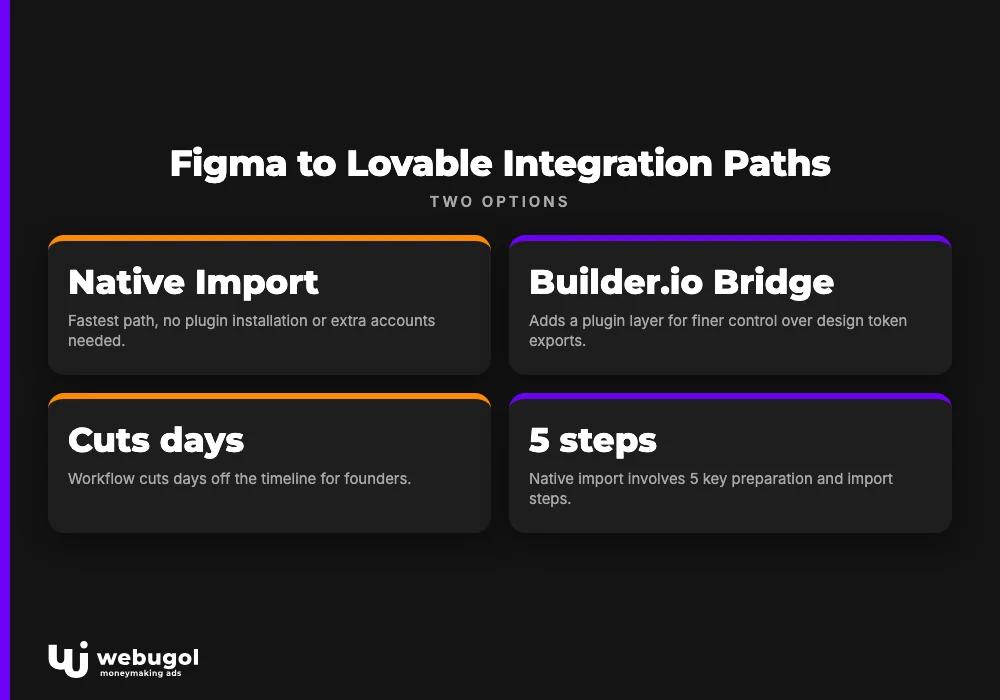
Lovable offers a built-in Figma import and a Builder.io bridge: two parallel paths from design file to deployed application. Neither is a step inside the other. The native import needs nothing beyond a Figma share link; the Builder.io route adds a plugin layer for finer control over design token exports. Which path fits depends on file complexity and what the output needs to do after launch.
For a founder who has a polished Figma file and wants a working app to test with real users, the figma to lovable workflow cuts days off the timeline. The choice between the two paths comes down to design system complexity and how much control over component output the project requires.
Using Lovable's native Figma import
The native import is the fastest path. No plugin installation, no extra accounts. Just a shareable link.
Before importing, the Figma file needs preparation. That work in Figma pays off significantly during and after the import.
- Prepare your Figma file. Name every major frame and layer. Generic names like "Frame 47" produce generic class names in the output, which makes prompt-based corrections harder later.
- Organize screens into named pages. Lovable reads the page structure and uses it to scaffold navigation. Unnamed pages create ambiguous routing in the generated codebase.
- Flatten deeply nested Auto Layout groups. Heavily nested Auto Layout breaks column structures after import. Simplify the structure in Figma before proceeding.
- Open Lovable and select Figma import. From the project creation screen, choose the Figma import option. This is a native feature; no separate plugin installation is required.
- Paste the shareable Figma file link. Lovable fetches the file and begins generating code. Mid-sized files process in under a minute.
- Review and prompt-fix the generated layout. Check spacing, font rendering, and component placement. Use follow-up prompts to correct anything that drifted from the original design.
Two failure points appear consistently: unnamed layers producing generic class names, and nested Auto Layout breaking column structure after import. Both are cheaper to address in Figma before the import than to chase with prompts afterward.
Using Builder.io as a bridge
The Builder.io path adds setup overhead but produces better output for files with mature design systems. It makes sense when exported components need to carry token references rather than hard-coded pixel values.
- Install the Builder.io plugin in Figma. The plugin is in the Figma plugin directory. Connect it to your Builder.io workspace before exporting anything.
- Map design tokens in the plugin. Colors, type scales, and spacing can be mapped to named tokens before export, so the generated code reflects the design system rather than raw pixel values.
- Export selected frames or components to Builder.io. The plugin converts the selected elements and stores structured code in your Builder.io account.
- Paste the exported code into a Lovable prompt. Lovable uses this as the starting point and produces cleaner component hierarchy than the native import path generates.
This route works best for complex design systems with reusable token structures. The trade-off is an additional Builder.io account and the mapping setup step. For simple landing pages or early validation prototypes, the native figma to lovable import is faster and requires no extra tooling.
What to expect from the imported code: quality and fidelity
The figma to lovable import produces working, deployable code. It is not a pixel-perfect translation, and expecting one leads to wasted prompt credits.
The output is an approximation. Colors and typography carry over reliably. Rough layout positions do as well. Spacing can drift between the original design and the generated result, hover states are absent from the output, and the component hierarchy is flattened compared to the Figma source. This is expected behavior, not a bug.
For a founder shipping a first version to validate pricing, messaging, or core features with real users, that approximation is usually enough. A live URL that works beats a perfect prototype that ships late. The fidelity gaps become meaningful when the product needs to extend to new screens or handle real user scale, that is a later problem.
Can Lovable preserve Figma components and Auto Layout?
Lovable carries over visual geometry but does not replicate Figma component hierarchy or Auto Layout constraints.
What survives the figma to lovable import: colors, type styles, rough positional layout, and static image assets. What does not: component instances, Auto Layout rules, variant logic, and design token references. The output is a rendered snapshot of the design at a fixed viewport, with structural logic stripped. If the design relies heavily on component variants or multi-breakpoint layout behavior, plan for systematic prompt iteration after import, not quick patches but deliberate reconstruction of the structural layer.
Figma Make vs Lovable: which tool fits your project?
Lovable converts a design into a full deployable application with a backend. Figma Make creates interactive prototypes that stay inside the Figma ecosystem. Neither replaces the other.
The right choice depends on where the project ends up, not where it starts. A polished prototype and a production-grade application are different deliverables, and the two tools are built for each. Founders comparing the two often frame it as a speed question; it is actually an output question.
| Lovable | Figma Make | Custom dev | |
|---|---|---|---|
| Entry cost | Subscription-based | Included with Figma | Quote-based |
| Code ownership | Exportable codebase | Figma-locked | Full ownership |
| Backend support | Built-in (database, auth) | None | Full |
| Scalability ceiling | AI generation limits | Prototype only | No ceiling |
The custom dev column represents the path after Lovable reaches its limits, covered in the next section.
When Lovable makes sense
You have a finished Figma design and need a live, shareable app with a database and user authentication. Lovable handles the full stack and delivers a real URL. For founders who want to test a product concept without assembling a dev team, it shortens the gap between design and testable software by a meaningful margin. That is what it is built for.
When Figma Make makes sense
You are still inside Figma, the deliverable is a clickable prototype for stakeholder review, and there is no backend requirement. Figma Make handles that job faster than any export-and-import workflow. No code output to review, no deployments to manage. If the goal is "share a clickable design," Figma Make is the more direct path.
When does Lovable hit its limits after a Figma import?
Lovable reaches its ceiling when the imported project requires custom third-party integrations, production-level auth flows, or performance logic the AI cannot generate reliably.
This is not a Lovable failure. It is a growth signal. The tool is built for speed at the prototype and early validation stage, and it delivers on that well. The limits show up as the product matures: auth edge cases that require hand-written middleware, API integrations with rate-limiting or webhook logic that prompt loops cannot resolve, and team collaboration on a codebase that Lovable keeps regenerating on each prompt cycle.
Founders who have used Lovable to validate demand and are now seeing real user growth face this transition directly. The prompting cost per fix starts rising. The same layout regression appears across multiple sessions. These are signals, not reasons to abandon what has already been validated.
Signs your Figma-to-Lovable project needs a real developer
Practical trigger signals:
- The AI is fixing the same layout or logic bug across multiple prompt rounds without a lasting resolution.
- A third-party integration requires custom error handling that generated code cannot produce reliably.
- The codebase needs version control across a team, and Lovable's regeneration model overwrites work in progress.
- Performance requirements such as load time, query optimization, or caching exceed what the generated output can deliver.
- Production authentication (OAuth flows, role-based access, multi-factor) exposes edge cases the AI output does not cover.
When those signals appear, ai mvp development services picks up where Lovable stops. The production version of what you already validated gets built with a growth marketing system included from day one, not added later when slow conversion is already costing you acquired users.
Ready to move beyond Lovable?
If you have hit the ceiling described above, the next step is a production build that extends what you already have, not a rewrite from scratch.
Webugol takes existing Lovable projects and Figma files and delivers working applications with development and growth marketing running as one system. No handoff gap between the team that builds the product and the team that grows it. The result is a measurable cost per acquisition, not a stack of invoices from vendors who do not share accountability for the outcome.
To start, bring your Lovable project or Figma file to a strategy call. The scope of the production path typically clarifies in the first conversation.
FAQ
How do I import a Figma design into Lovable?
Open Lovable, select the Figma import option from the project creation screen, and paste the shareable Figma file link. Lovable generates the initial codebase from the design. Prepare the file first by naming all major frames and flattening deeply nested Auto Layout groups.
Does Lovable have a native Figma plugin or integration?
Lovable includes a built-in Figma import that works directly from a shareable file URL, with no separate plugin installation required. For more control over design token mapping, the Builder.io Figma plugin offers an alternative export path into Lovable.
What is the difference between Figma Make and Lovable?
Figma Make generates interactive prototypes that stay inside the Figma ecosystem; Lovable generates a full deployable web application with a backend. They start from similar inputs but produce fundamentally different outputs.
Can Lovable preserve Figma Auto Layout after import?
Lovable preserves visual layout geometry but does not carry over Auto Layout constraints or component hierarchy. After import, responsive behavior and nested layout rules typically require manual prompt adjustments.
When should I hire a developer instead of using Lovable?
Bring in a developer when the project needs custom third-party integrations, production-level authentication, or a codebase multiple people need to maintain and extend. At that stage, Lovable has done its job as a prototyping accelerator and a developer carries the product to production.

