



WordPress speed optimization: complete guide to faster sites
WordPress speed optimization addresses three performance layers in sequence: server environment, WordPress configuration, and asset delivery. A one-second load time increase measurably cuts conversions, a pattern Portent documented consistently across speed research. Run a diagnostic before applying any fix. Identifying which layer is failing matters more than the specific technique you apply.
Why your WordPress site is slow
A slow WordPress site almost always traces to one of five causes: underpowered hosting, an outdated PHP version, oversized uncompressed images, excessive plugin overhead, or a bloated theme with a large DOM. Each cause is measurable. Each has a direct fix.
Most speed guides hand you a numbered list with no priority order. Owners apply fixes targeting the wrong bottleneck, see no improvement, and conclude the problem is unsolvable.
The five root causes and their diagnostic signals:
| Cause | Primary diagnostic signal | First action |
|---|---|---|
| Underpowered hosting | TTFB above 600 ms on clean loads | Upgrade hosting tier or migrate provider |
| Outdated PHP | Elevated TTFB, no other obvious cause | Update to PHP 8.2 in hosting dashboard |
| Uncompressed images | Large page weight, slow LCP | Convert to WebP, enable lazy loading |
| Plugin overhead | High JavaScript load time | Audit and remove unnecessary plugins |
| Bloated theme or page builder | DOM size above 1,500 nodes | Evaluate lightweight block theme |
Run a speed test first
Google PageSpeed Insights combines lab data from a simulated test environment with field data from real Chrome users. The composite score from 0 to 100 is a weighted blend of individual metrics. Treating the composite number as your primary target leads to optimizing the wrong things.
Performance bands: 0 to 49 signals serious problems affecting both rankings and user experience. Scores from 50 to 89 indicate optimization opportunities without critical failure. The 90-to-100 range is the passing threshold for core web vitals WordPress sites need to rank competitively. Always examine the individual metric breakdown beneath the composite score.
Which Core Web Vital is your bottleneck?
Largest Contentful Paint (LCP) measures how quickly the largest visible element loads on screen. Interaction to Next Paint (INP) tracks how fast the page responds after a user click or tap. Cumulative Layout Shift (CLS) captures unexpected visual movement as the page renders.
Each metric points to a different fix. A slow hero image is an LCP problem. Laggy button responses indicate INP. A layout shifting as fonts or ads load is CLS. Fixing the wrong metric wastes time and budget. For a technical audit mapped to your specific site, Core Web Vitals optimization turns passing scores into what they are actually for: better rankings and higher conversion on the traffic you already pay to acquire.
How long does it take to speed up a WordPress website?
Quick wins, including PHP upgrades, caching setup, and image compression, take under 30 minutes for most sites. Full WordPress speed optimization, covering Core Web Vitals remediation, database cleanup, and plugin audit, depends on how many of the five root causes are active on your site. The diagnostic step above identifies your bottleneck and determines where time is best spent.
Updating PHP 8.2 in your hosting dashboard takes under 10 minutes and requires no plugin changes. Installing and configuring a WordPress caching plugin adds under 20 minutes more. These two steps address the most common TTFB bottlenecks most sites have never resolved.
Does hosting affect WordPress speed?
Yes. Hosting is the performance floor. Every plugin-level fix is bounded by how quickly the server responds. Caching a slow server response does not solve the underlying problem; it only masks it temporarily. Owners who install one more plugin rarely see improvement when hosting is the actual root cause.
If TTFB exceeds 600 milliseconds in GTmetrix or WebPageTest, hosting is your bottleneck. Run the test from a server region near your target audience. In the waterfall chart, the first bar is pure server response time. A bar extending past 600 ms means no frontend optimization closes that gap.
Symptoms of an underpowered hosting plan:
- TTFB consistently above 600 ms on clean, uncached page loads.
- CPU or memory limits reached during normal traffic, visible in your hosting dashboard logs.
- Performance degrades noticeably during traffic spikes.
- Database query times increase without any code changes on your end.
- Shared hosting neighbors affect your response times, common on entry-level plans.
WordPress hosting speed and CDN
A CDN materially improves WordPress hosting speed if a meaningful share of your visitors is more than 1,000 km from your origin server. A CDN caches static assets on globally distributed servers, so users load images, CSS, and JavaScript from a nearby edge node rather than your hosting location.
Cloudflare's free tier covers most small business needs: it accelerates static assets, adds basic DDoS protection, and takes under 30 minutes to configure via a nameserver change. For WooCommerce stores serving customers across multiple regions, CDN performance improvements often exceed what any single plugin optimization delivers.
Which WordPress caching plugin is best?
LiteSpeed Cache is the best free option if your host runs a LiteSpeed web server. WP Rocket is the top paid choice for Apache and NGINX stacks and requires no technical knowledge to configure. W3 Total Cache is a free alternative for developers comfortable with manual configuration. The right WordPress caching plugin depends entirely on your server stack, not your review filter.
| Plugin | Price | Server compatibility | Setup difficulty | Key features |
|---|---|---|---|---|
| LiteSpeed Cache | Free | LiteSpeed only | Easy | Full-page cache, image optimization, CDN integration |
| WP Rocket | Paid (annual license) | Apache, NGINX, any | Very easy | File optimization, lazy load, database cleanup, CDN |
| W3 Total Cache | Free | Any | Advanced | Page, object, and browser cache; CDN; minification |
Match the WordPress caching plugin to your server stack. LiteSpeed Cache on LiteSpeed hosts. WP Rocket everywhere else. Choosing by review count instead of server compatibility is the most common mistake in this selection.
What is a good PageSpeed Insights score for WordPress?
A score of 90 or above passes Core Web Vitals and is the threshold where core web vitals WordPress rankings improve. Scores from 50 to 89 indicate room for improvement without causing direct ranking penalties. Below 50 is serious. These scores usually reflect LCP or TTFB failures that affect both user experience and organic traffic.
The composite score alone is not the right target. A site can score 85 with a passing LCP but a failing INP, and the ranking impact comes from the failing metric. Drill into individual metric results before deciding where to invest optimization time.

How do I fix LCP on a WordPress site?
The LCP fix WordPress sites need most often starts with identifying the actual LCP element. In most WordPress sites, that element is the hero image or the largest heading in the above-fold area. Open Chrome DevTools, run a Lighthouse audit, and find the "Largest Contentful Paint element" entry in the diagnostic section.
LCP fix WordPress checklist:
- Never lazy-load the hero image. Set
loading="eager"explicitly if your optimization plugin overrides the default. - Serve the hero image in WebP format to reduce file size without quality loss.
- Preload the LCP image using a
<link rel="preload">tag in your theme's header. - Move render-blocking scripts using WP Rocket's "delay JS" or LiteSpeed Cache's equivalent setting.
- Switch to hosting with TTFB below 200 ms, since server latency adds directly to LCP time.
One constraint applies across all LCP fix WordPress approaches: the hero image on WooCommerce product pages is always the LCP element and must load eagerly, regardless of any plugin setting.
WordPress speed optimization: configuration layer fixes
Even on fast hosting, WordPress introduces overhead that plugin choices and theme architecture multiply. These fixes target the WordPress configuration layer directly, independent of your server tier.
Minify and defer JavaScript and CSS
Minification removes whitespace and comments from JS and CSS files, reducing their size. Deferral changes when a script executes. Render-blocking scripts force the browser to pause page building until the script finishes, directly delaying LCP regardless of file size.
Smaller files that still block rendering will not move your PageSpeed score. WP Rocket and LiteSpeed Cache both offer "delay JS" modes that hold execution until after initial user interaction, avoiding conflicts with site-critical plugins.
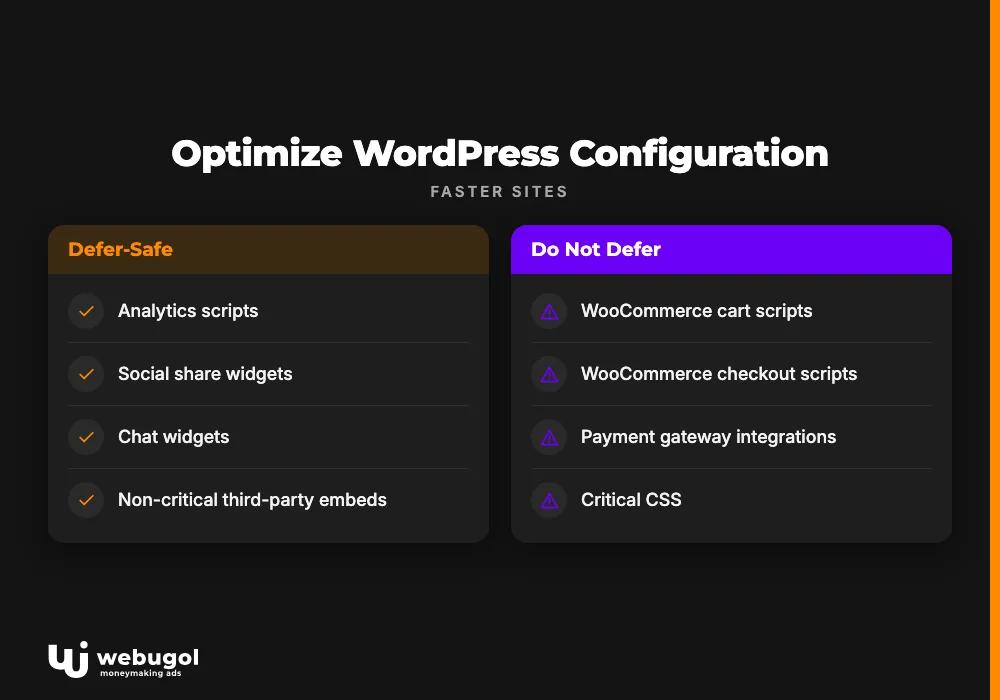
Defer-safe vs. skip rules for common scripts:
- Defer: analytics scripts, social share widgets, chat widgets, and non-critical third-party embeds.
- Do not defer: WooCommerce cart and checkout scripts, payment gateway integrations, or critical CSS.
- Test carefully before deploying: contact form scripts, popup plugins, or any script that fires on page load.
Cut plugin bloat to reduce page load time
Page-builder add-ons, legacy slider plugins, duplicate SEO tools, and poorly coded custom integrations carry the highest per-plugin overhead. The audit rule: if a plugin adds a database query or HTTP request on every page load and you cannot name a specific business outcome it produces, remove it.
Plugin types with the highest impact on WordPress page load time:
- Visual page builders with heavy front-end scripts loaded site-wide on every page.
- Legacy image slider plugins that enqueue scripts and CSS globally.
- Duplicate security scanners running separate checks on every request.
- Unused shortcode plugins that still load assets after being deactivated.
- Social feed widgets pulling live API data on every page load.
Database cleanup: revisions, transients, and orphaned meta
WordPress accumulates post revisions, expired transients from plugins, and orphaned postmeta rows over time. On an active site running two or more years, these records can reach tens of thousands of rows, slowing every page-load query. Schedule cleanup quarterly.
WP-Optimize and Advanced DB Cleaner both handle this safely. Always take a full database backup before running any cleanup tool.
Database items to remove on a recurring schedule:
- Post revisions, limited to five or fewer per post via a constant in
wp-config.php. - Expired transients from plugins that never auto-clean their cached data.
- Orphaned postmeta rows left behind by deleted posts or deactivated plugins.
- Trashed posts and comments older than 30 days.
- Bloated autoloaded rows accumulating in the
wp_optionstable.
WooCommerce performance: where standard caching advice breaks down
WooCommerce adds specific caching constraints that standard WordPress speed optimization guides skip entirely. Ignoring them causes silent checkout failures in production. This is precisely where generic plugin advice fails store owners at the worst possible moment.
Why cart and checkout pages must stay uncached
Cart, checkout, my-account, and dynamic product pages must be excluded from full-page caching. Without those exclusions, customers see stale cart contents and session errors. Most caching plugins auto-detect these URLs only if you explicitly enable the WooCommerce integration setting inside the plugin dashboard.
WooCommerce URLs and conditions to exclude from caching:
/cart/and any URL containing?add-to-cart=./checkout/and all sub-steps within the checkout flow./my-account/and all sub-pages.- Any request where the
woocommerce_items_in_cartcookie is set. - Product pages with dynamic inventory or pricing logic.
Verify exclusions are active by logging out, loading the cart page, and confirming no static cached version loads.
Lazy-load product images without breaking UX
Gallery images below the product fold are safe to lazy-load. The primary product image is almost always the LCP element and must load eagerly. Set loading="eager" explicitly on the main product image if your theme or optimization plugin overrides the default.
WooCommerce image optimization checklist:
- Convert all product images to WebP with ShortPixel or Imagify, both of which integrate directly with WooCommerce.
- Lazy-load gallery images; never lazy-load the primary product hero image.
- Set WordPress media dimensions to match your theme's display sizes to prevent upscaling.
- Serve product images via CDN if your customer base spans multiple regions.
- Confirm srcset attributes are present so mobile users receive appropriately sized files.

When WordPress speed optimization reaches its limit
There is a performance ceiling. After applying every fix above, some sites still fail Core Web Vitals or cannot sustain the load times their traffic and conversion goals require. Plugins do not resolve architectural constraints.
Signals that WordPress speed optimization has hit its ceiling:
- LCP persists above 4 seconds after complete caching, image, and server optimization.
- You are already on a top-tier managed WordPress host and TTFB remains above 400 ms.
- Architecture requirements include edge rendering, API-driven content, or headless delivery that WordPress cannot support natively.
- Page-builder lock-in means migrating to a lean theme requires a full rebuild regardless.
- WooCommerce caching exclusions eliminate most of the performance benefit your hosting tier provides.
For sites that have exhausted every WordPress speed optimization path and still score below 70, a full platform migration to a modern React or Next.js stack is the practical next step. The performance improvement is architectural. No plugin replicates it.
Webugol's Next.js team handles these migrations as combined growth projects, with the same team owning SEO URL architecture, migration mapping, and conversion infrastructure from day one. If your bottleneck sits at the architecture level rather than the configuration level, a headless CMS delivery approach removes the rendering constraints WordPress carries by default, delivering the same content management workflow with substantially faster output.
If you are weighing whether to handle this internally or bring in an external partner, the decision criteria behind building vs. outsourcing your marketing growth function are worth reviewing before committing either way.
Ready to fix your WordPress performance for good?
WordPress speed optimization plateaus when the underlying architecture limits further gains. A stalled PageSpeed Insights score usually points to an architectural problem, not a missing plugin.
Webugol builds and grows websites as one integrated system: the same team handles Core Web Vitals performance, organic search, and conversion architecture. Request a free site audit to find out exactly where your performance ceiling sits. The audit covers speed, organic traffic opportunity, and conversion architecture, so every gain compounds toward growth and not just a better score.
FAQ
Why is my WordPress website so slow?
The most common causes are high server response time from underpowered hosting, an outdated PHP version, uncompressed images loaded without lazy loading, and too many active plugins loading scripts on every page. A PageSpeed Insights test identifies which cause applies to your site in under five minutes.
What is a good PageSpeed Insights score for WordPress?
A score of 90 or above is the passing threshold for Core Web Vitals. Scores from 50 to 89 indicate optimization opportunities but do not typically cause direct ranking penalties. Scores below 50 usually reflect LCP or TTFB failures that affect both user experience and organic traffic.
Does WordPress speed affect Google rankings?
Yes. Google uses Core Web Vitals as a ranking signal, confirmed since the Page Experience update. LCP, INP, and CLS are the three measured metrics. Sites passing all three hold a ranking advantage over otherwise equal competitors, though content relevance remains the dominant ranking factor.
Which WordPress caching plugin is best?
LiteSpeed Cache is the fastest free option on LiteSpeed-powered hosting. WP Rocket is the best paid option for Apache and NGINX servers. Matching the plugin to your specific server stack, rather than picking the highest-rated option overall, determines the actual performance gain.
When should I migrate from WordPress instead of optimizing it?
Migrate when LCP stays above 4 seconds after complete optimization, when your architecture needs edge rendering or API-driven content delivery, or when the ongoing cost of performance maintenance exceeds a structural rebuild. A React or Next.js architecture removes performance constraints that no plugin resolves.