



Google Analytics Permissions: Roles, Access Levels, and What to Do When You Don't Own Your Stack
Google Analytics permissions are the access control layer that determines who can view, configure, and administer data across your GA4 account and its properties. The structure runs two levels deep: account level and property level. Account-level roles propagate down to every property beneath them, so a former contractor with account-level Admin retains full control over every GA4 property regardless of what you assigned at the property level. If your head of marketing cannot name who holds that account-level Admin role today, this guide walks through the full picture and how to fix it.
What are Google Analytics permissions?
Google Analytics permissions define which actions each user can take within a GA4 account, organized at two levels: account and property. A role granted at the account level is inherited by every property below it. A property-level assignment applies only to that specific property and cannot override what was set above.
The practical gap between these two levels matters more than most marketing teams expect. An agency assigned Editor at the property level has restricted configuration access. That same agency assigned Administrator at the account level controls your entire GA4 footprint, can delete properties, can manage every user, and cannot be blocked at the property level after the fact. For any healthcare marketing org that has cycled through vendors, the account-level admin slot is the first thing worth auditing.
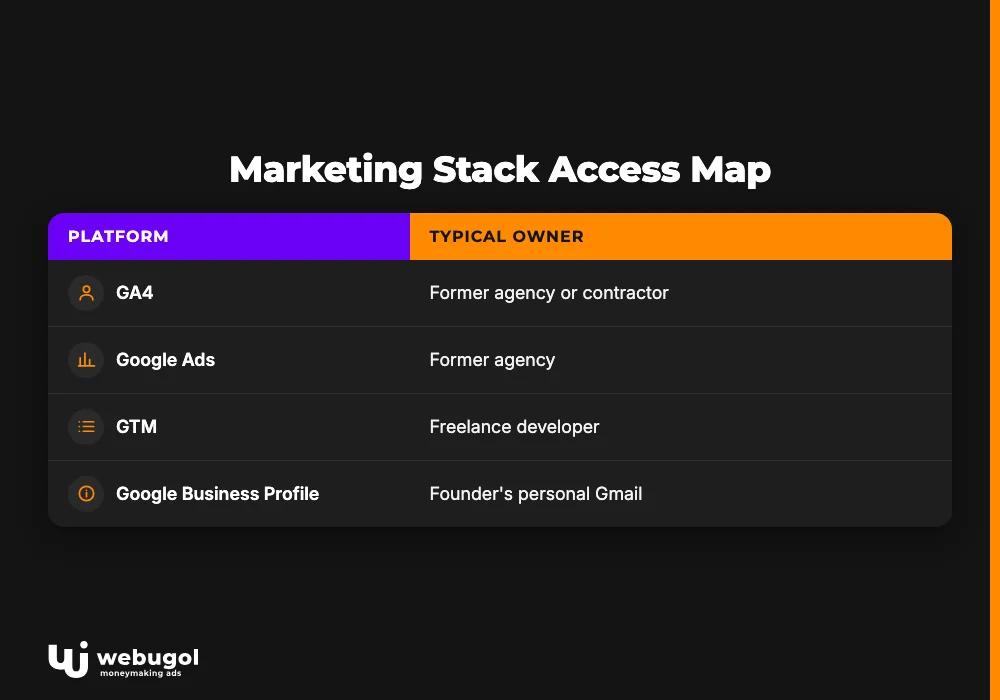
Who actually controls your marketing stack?
For most healthcare practices that have operated for more than two years, the honest answer is: not you. The pattern is consistent. Google Ads belongs to the prior agency. GTM was built by a freelance developer who is no longer on retainer. Google Business Profile is registered under the founder's personal Gmail. The one person who understood the GA4 implementation just gave two weeks' notice.
That is not a hypothetical. It is what a stack audit uncovers.
Without clean google analytics permissions ownership across your platforms, you cannot accurately diagnose performance problems when they appear. The Head of Marketing ends up accountable for numbers they cannot verify because the access map is fragmented across four vendors and a founder account. This structural fragility is what Webugol addresses in Week 1 of every healthcare growth engagement, mapping the access graph before any campaign optimization begins, because clean ownership is the prerequisite for performance data you can trust.
The table below shows the typical ownership pattern in an inherited marketing org, alongside where ownership should sit and the minimum internal access needed to maintain continuity when any vendor relationship ends.
Marketing Stack Access Map
| Platform | Typical Current Owner in Inherited Stacks | Who Should Own It | Minimum Internal Access Needed | Compliance Risk If Unowned |
|---|---|---|---|---|
| GA4 | Former agency or contractor | In-house Head of Marketing | Administrator (account level) | Tracking breaks on offboarding |
| Google Ads | Former agency | In-house or verified partner | Admin with billing access | Ad spend continues if card is on file |
| GTM | Freelance developer | In-house or agency with SLA | Publish access | Tags break silently on account lockout |
| Google Business Profile | Founder personal account | Business Google Workspace account | Manager | Cannot respond to reviews or update hours |
| CRM | Implementation partner | In-house ops or marketing lead | Admin | Contact data inaccessible at migration |
| Call Tracking | Vendor account manager | In-house marketing | Admin | Routing breaks; no data portability |
| DNS | Web dev contractor | IT or marketing ops | Admin access via registrar | Cannot verify property; ad tags break |
GA4 permission levels: the 6 roles explained
GA4 structures google analytics permissions across six distinct roles, each with a different scope of action. The table below summarizes key capability differences before the H3 breakdowns add healthcare-specific guidance on when each role is appropriate.
| Role | View reports | Create explorations | Edit property settings | Manage users | Delete data or properties |
|---|---|---|---|---|---|
| Viewer | Yes | No | No | No | No |
| Analyst | Yes | Yes | No | No | No |
| Editor | Yes | Yes | Yes | No | No |
| Marketer | Yes | Yes | Partial* | No | No |
| Administrator | Yes | Yes | Yes | Yes | Yes |
\*Marketer can create audiences, conversions, and attribution models but cannot modify data streams or integrations.
Viewer
Read-only access to reports, dashboards, and explorations. Assign this role to board members, compliance reviewers, and finance stakeholders who need visibility without any configuration access. Combine it with data restrictions to limit which financial metrics they see.
Analyst
Analysts can create personal explorations, annotations, and collections, but cannot change property configuration or affect anyone else's data view. This role works for in-house team members who consume data regularly but are not responsible for the tracking setup.
Editor
Full access to property settings, conversion events, audiences, data streams, and attribution configuration. This is the standard role for in-house performance marketers who own campaign and tracking setup. It cannot manage users or delete the property.
Marketer
A scoped-down variant of Editor. Marketers can create audiences, conversions, and attribution models, but cannot modify data streams or integrations. The right fit for a paid media manager who needs audience configuration access without full property control.
Administrator
Full control over users, integrations, data deletion, and account structure. Granting account-level Administrator to an external vendor, freelancer, or agency is the most common access risk in inherited stacks. When that relationship ends, your ability to revoke access depends entirely on the other party cooperating.
No direct role (effective access only)
A user holding no direct role at the property level can still have full access through account-level inheritance. This is the least intuitive aspect of the permission model and the one most likely to surface a hidden access problem in a mature org. The next section covers how it works in practice.

How to add, edit, and remove users in GA4
Access management in GA4 lives in two places: Admin > Account Access Management for account-level assignments, and Admin > Property Access Management for property-level. The interfaces look identical; the level you are on determines whether the role applies to the full account or just one property. Start at the account level when auditing inherited stacks.
Adding a new user:
- Navigate to Account or Property Access Management depending on the intended scope
- Click the blue "+" button at the top right
- Enter the user's Google account email address
- Select the appropriate role from the dropdown
- Apply data restrictions if needed (this screen is the only point where you can configure them at add time)
- Click Add
HIPAA checkpoint when adding users: confirm the email is a business account, not a personal Gmail, and document who was granted access, at what level, and when.
Editing an existing user's role:
- Navigate to the access management screen at the appropriate level
- Click the user's name or the pencil icon to their right
- Change the role selection and save
Removing a departing contractor or agency:
- Navigate to Account Access Management first, not property level
- Find the user, open the three-dot menu, and select Remove
- Repeat at the property level if the user also held a direct property-level assignment
- Remove from GTM, Google Ads, and Google Business Profile in the same session
User groups let you assign a standard role to a named group rather than to individuals. Create a group once in Admin > Account Access Management > Groups, then add new team members to the group. This prevents inconsistent role assignment as people join and leave over time.
Auditing google analytics permissions when onboarding new team members
Before assigning any role, check the account-level effective access list to confirm no prior assignment exists for the new user's email. A hire joining from a previous agency may already hold inherited access from a group assignment made under a personal account that predates your current stack.
Account level vs. property level: why it matters
The two-level hierarchy in GA4 is not symmetrical. Access granted at the account level flows automatically to every property beneath it. Property-level access stops at that property.
A concrete scenario: an agency is assigned Editor at the property level. You later discover they also hold Administrator at the account level, assigned when the account was first created. Their property-level Editor role is irrelevant. The account-level Administrator overrides it, giving them full control over every property regardless of what the property-level assignment says.
This asymmetry is why auditing google analytics permissions at the account level is a prerequisite before any vendor transition. Property-level assignments alone will not reveal what any user can actually do.

Why does a user have more access than you assigned in GA4?
A role set at the account level is inherited by every property beneath it, regardless of what the property-level user list shows. GA4 calls this the user's effective role, as distinct from their direct role. The two values can be very different.
The distinction between direct and effective google analytics permissions is why a contractor assigned "Manage Users" at the account level holds effective Admin-equivalent power across every property in the account, as documented in this Reddit thread on "Manage Users" and full Admin access in GA4. The direct role visible in the property-level view is not the ceiling on what that user can do.
To audit effective access, navigate to Admin > Account Access Management and check the Effective Role column for every user. Run this check before any vendor transition, not after.
If mapping who currently holds effective Admin access across your GA4, Google Ads, GTM, and CRM would take your team a week to untangle, that is the access and tracking diagnostic Webugol opens with in the Week 1 access and tracking audit. Clean ownership across the full stack is established before any campaign work begins.
Data restrictions: hiding cost, revenue, and sensitive metrics
Data restrictions are a separate layer from role assignment. They control which metric categories a user can see, independent of their assigned role. A user with Editor access and a "No Cost Metrics" restriction cannot see CPC, CPM, or cost-per-conversion figures, even though their role would otherwise allow it.
For healthcare marketing teams, this separation is operationally useful. It lets you give a compliance reviewer or external auditor Viewer access with restricted financial metrics so they can verify event configuration and consent mode without seeing your media spend or revenue figures. Before configuring data restrictions for a healthcare property, review how GA4 handles HIPAA compliance requirements to confirm the underlying configuration meets your compliance baseline.
What "No Cost Metrics" and "No Revenue Metrics" actually hide
No Cost Metrics removes from reports: CPC, CPM, cost per conversion, total cost, and any blended cost metric. The underlying data is not deleted; it is not visible to the restricted user.
No Revenue Metrics removes: purchase revenue, total revenue, average order value, and any revenue-derived metric from reports and explorations. For healthcare practices with membership programs or direct-pay billing tracked through GA4 conversion events, this keeps financial figures away from reviewers who do not need them.
Both restrictions can be applied simultaneously. Both apply regardless of the user's assigned role.
When to use data restrictions for healthcare compliance
The standard use case in healthcare marketing is applying both restrictions for compliance and legal reviewers who need to verify event data, consent mode, and conversion tracking setup without access to financial reporting. Data restrictions also interact with User ID reporting: if your GA4 property uses User ID to stitch sessions across devices, restricting cost and revenue access for external reviewers limits exposure of data that could be traced to individual patients. When your in-house marketer is responsible for tracking patient behavior across booking touchpoints, Editor access is the minimum needed to configure the patient journey analytics that connect ad click to booked appointment.

Which GA4 role should you give a marketing agency?
Give the agency Editor access at the property level only, not account-level Administrator. That is the direct answer, and it applies regardless of how large or trusted the agency is. The access structure should reflect what you can recover from, not how much you currently trust the relationship.
Whether to deepen that agency relationship, expand their scope, or build internal capacity is a structural question connected directly to how agency access shapes your in-house marketing structure, because the access model you establish today determines your leverage when the relationship changes.
Internal marketing team
The Head of Marketing should hold Editor or Administrator at the property level, with at least one other internal owner assigned at the account level as a co-owner. Account-level Administrator should never be held by a single person who is also responsible for campaigns. Paid media managers work at Editor or Marketer; content managers and analysts belong at Analyst. Compliance reviewers get Viewer with both data restrictions applied.
External agency or consultant
Property-level Editor only. This prevents account deletion, user management across all properties, and data deletion, while still giving the agency full access to configure tracking, audiences, and conversions. Scoping google analytics permissions to property-level Editor for every external partner ensures that offboarding remains deterministic regardless of how the relationship ends. The offboarding checklist when the agency relationship ends: revoke GA4 property access, revoke GTM publish access, remove from Google Ads, remove from Google Business Profile, and confirm DNS admin access has been transferred. Run all four in the same session. Do not wait until the relationship has gone cold.
Compliance and legal reviewers
Viewer role with No Cost Metrics and No Revenue Metrics applied. Compliance reviewers need to confirm that event configuration and consent mode are correct, not to see your media spend. This combination gives them the visibility they need while aligning with HIPAA data minimization principles around limiting access to the minimum necessary for the stated purpose.
How do you fix "you don't have access" in Google Analytics?
The most common cause is a GA4 account created under a personal Google account that belongs to a former employee or agency with no secondary Admin in place. Work from your domain admin console to identify the current account owner and use Google's account recovery process if that person is no longer reachable.
Google analytics missing permissions errors typically follow one of five patterns:
- Account created under a former employee's personal Gmail with no backup Admin. Contact Google Support with proof of business ownership and domain verification. The process takes days, not hours, and requires documentation.
- Agency holds account-level Admin and has gone dark after offboarding. Submit a request through Google's property ownership transfer process; this requires domain ownership verification and can take up to two weeks.
- User has property-level Editor access but no account-level view, creating a "missing account" error in the GA4 UI. A current account-level Admin can resolve this in minutes by adding the user at the account level with at minimum Viewer access.
- Google Workspace account mismatch after a domain migration. New domain users cannot see assets assigned to old domain accounts until access is explicitly reassigned by an Admin on the old domain.
- Access revoked during agency offboarding with no handoff to an internal owner. The agency removed themselves correctly, but no internal user had been pre-assigned as a co-owner. Requires Google Support escalation with proof of ownership.
The preventive fix is straightforward: every GA4 account needs at minimum two internal account-level Admins. One departure cannot take down visibility.
Common mistakes when managing GA4 access
The access problems that surface in a stack audit are rarely the result of a single bad decision. They compound over time from structural mistakes that are individually minor.
Granting account-level Admin to external vendors without a co-owner policy. An agency with sole account-level Admin is one departure away from an access crisis. Any external user holding Admin access should be paired with at least one internal co-owner assigned at the same time.
Using personal Gmail accounts as the sole GA4 owner. When the founder created the GA4 account with a personal Gmail three years ago, that Gmail became the access root for the entire analytics infrastructure. Business-owned accounts belong to the organization. Personal accounts follow the person.
Failing to offboard agencies from GTM and Google Ads alongside GA4. A complete offboarding covers all four platforms in one session. Revoking GA4 access while leaving GTM publish access intact means the former agency can still modify tag firing rules on your site.
Conflating account-level and property-level assignments when troubleshooting google analytics permissions conflicts. A user who cannot see a property is not necessarily missing property-level access; they may be missing account-level Viewer access, which is what makes the account visible in the GA4 UI at all. Debug access issues at account level first, then property level.
Each mistake is fixable without rebuilding the stack. All require someone who holds account-level Admin and time to run a systematic audit before the next vendor transition forces your hand.
Run your full marketing access audit today
Healthcare marketing teams where the Head of Marketing does not hold Admin access to GA4, GTM, or Google Ads are one personnel change away from zero visibility into their own performance data. A clean google analytics permissions map is the foundation that makes every downstream performance decision trustworthy. The access and tracking audit in Week 1 of the Healthcare Growth System establishes ownership across the full stack, corrects role assignments, and confirms HIPAA-compliant configurations before any campaign work begins. Book a strategy call to start the diagnostic.
FAQ
What is the difference between Admin and Editor in Google Analytics?
Admin can add and remove users, delete the property, and control account-level integrations. Editor can configure tracking, audiences, and conversions but cannot manage user access or delete data. For most in-house marketers, Editor is the highest appropriate role at the property level.
How do I fix "you don't have access" in Google Analytics?
The most common cause is a GA4 account created under a personal Google account belonging to a former employee or agency that is no longer reachable. Identify the account owner through your domain admin or Google Workspace and use Google Support's account recovery process if the owner is unavailable.
Can I give someone view-only access to specific reports in GA4?
Yes. Assign the Viewer role at the property level, then apply data restrictions to hide cost and revenue metrics. This combination lets a stakeholder or compliance reviewer see performance data without exposing financial figures or sensitive dimensions.
What GA4 role should I give a marketing agency?
Give the agency Editor access at the property level only, not account-level Administrator. This lets the agency configure tracking and audiences without the ability to delete the property, remove other users, or access your full account structure. Revoke the role as the first step when the agency relationship ends.
Why does a user have more permissions than I assigned in GA4?
A role set at the account level is inherited by every property below it, overriding what appears in the property-level user list. Check the Effective Role column in Admin > Account Access Management to see the access the user actually holds, not just the direct role you assigned.
How often should I review google analytics permissions for my marketing stack?
Audit access at the account level before every vendor transition, at the start of each year, and immediately after any personnel change in a role that held Admin access. For healthcare practices, quarterly reviews align with typical compliance cycles and reduce the risk of stale access persisting after offboarding.

